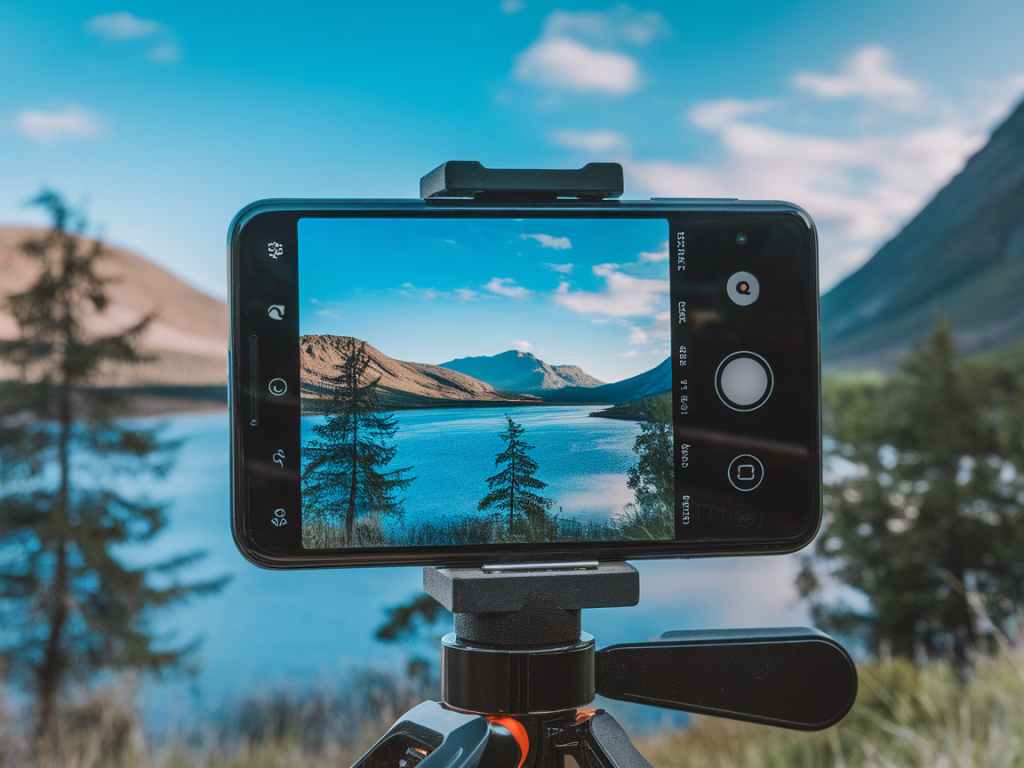
I test phones for a living, and I’ve spent more hours than I care to count comparing photos shot on flagship cameras versus mid-range workhorses. The Pixel 8a is one of those phones that punches way above its weight: the hardware is solid and Google’s computational photography does the heavy lifting. If you want pro-level photos without splurging on a flagship, you don’t need to be an expert — you just need a few practical tweaks and a workflow that plays to the Pixel’s strengths. Here are the techniques and settings I use every time I pick up a Pixel 8a.
Understand what the Pixel 8a does best
The Pixel line has never relied on raw megapixel counts to win. Instead, Google combines multi-frame captures, smart denoising, and scene-aware processing to extract detail and dynamic range. That means the Pixel 8a shines at:
Low-light shots thanks to Night Sight and long-exposure stackingPortraits with clean subject separation and natural skin tonesSuper Res Zoom (computational cropping) for distant subjectsQuick, reliable snapshots with great auto-HDR handlingMy goal when shooting is to nudge the camera where it’s strong and compensate where it’s not. For example, it’s easier to make a soft telephoto look crisp with Super Res Zoom than to try and recover detail from noisy, high-ISO crops.
Basic camera app settings I always set
Before I even frame a shot, I check a few defaults in the Pixel camera app. These small changes prevent headaches later.
Turn on RAW capture (in Settings > Advanced): RAW gives you maximum latitude in post. It’s not necessary for every snap, but for portraits, tricky exposures, or anything you plan to edit, shoot RAW+JPEG.Enable RAW + JPEG only when you’ll edit: RAW files are big and slower to write. If you’re just posting to social quickly, leave RAW off.Set the resolution to the highest for the main camera when you plan to crop or print.Check Motion Mode: Use Motion for panning or freezing dynamic movement, and Long Exposure (in Motion) for silky water and light trails on a tripod.Turn on Face Unblur (if available) for shots of people where motion blur might be an issue.Composition and practical shooting techniques
Good processing can’t fix a bad composition. I keep a few go-to rules front of mind when I’m composing a shot with the Pixel 8a:
Get closer rather than relying on digital zoom. The main 1x camera has the best optics and sensor; crop later if needed.Use foreground elements for depth. Even a slight overlap or a frame within a frame makes the Pixel’s computational depth feel more intentional.Watch the light direction. Side light adds texture and depth; backlight can be dramatic but use HDR or expose for highlights.Shoot at eye level for people. Slightly above can be flattering; low angles make subjects larger but can distort proportions.Low-light and Night Sight tips
The Pixel excels in low light, but you can make Night Sight work even better with these habits:
Stabilize the phone. Night Sight stacks multiple exposures — hold steady, lean on a wall, or use a small tripod/beanbag.Use Night Sight for anything under 1/30s or when ISO gets noisy. The algorithm blends frames to reduce noise but keep an eye on moving subjects; they can ghost.Try Night Sight with a short exposure (handheld) and again with a longer exposure (tripod). Compare and pick the cleaner shot.Avoid over-boosting highlight areas. Night Sight can recover shadows well, but blown-out lights will stay blown; recompose to minimize bright point sources when you want detail.Portraits and people photography
Portrait Mode on the Pixel 8a is very usable, but I tweak a couple things to make images look intentionally photographed rather than “auto-processed.”
Use Portrait Mode for subject separation, but don’t rely on it to fix composition — frame and pose the subject first.Choose a slightly wider aperture look in the editor if background blur feels fake. The Pixel’s algorithm can sometimes overdo smoothing; dial it back.Prefer natural light when possible. The Pixel’s skin tones are best in soft, directional light—think window light rather than overhead fluorescents.Shoot RAW + Portrait if you want to edit skin texture and background blur separately later in an app like Lightroom or Snapseed.Getting more from zoom and distant subjects
There’s no periscope lens on the 8a, but the phone’s Super Res Zoom is surprisingly effective when you follow these rules:
Start at 1x and crop later rather than starting at 2x or more. The main sensor is the cleanest.Keep your hands steady when using digital zoom. Super Res Zoom relies on micro-shifts between frames, so a stabilized capture yields more detail.Prefer high-contrast subjects—text, buildings, and textured clothing crop better than foliage or flat surfaces.Video tips that look more cinematic
Video is where stabilization and processing meet. The Pixel 8a records competent video that benefits from small pro touches:
Shoot at the highest bitrate and resolution available for the clearest captures to edit later (check Settings > Video).Lock exposure and focus by pressing and holding on your subject. This prevents the auto-exposure hunt that kills cinematic shots.Use a gimbal or steady surface for panning shots. Electronic stabilization is good, but motion-smooth pans are still a gimbal’s job.Record in natural light and avoid mixing light sources. Mixed color temps create white balance shifts that are obvious in motion.Editing workflow I use on the Pixel
I edit on-device the majority of the time. Google Photos, Snapseed, and Lightroom Mobile cover 95% of my needs.
Start in Google Photos: Use the Magic Editor for quick background or subject-aware fixes. The Sky and Tone suggestions are often right, but dial them down if they look artificial.Switch to Snapseed or Lightroom for fine edits: Snapseed is fast for selective adjustments and healing; Lightroom gives you RAW controls (exposure, highlights, shadows, color curves).Apply sharpening and noise reduction conservatively. Over-sharpening creates halos, while aggressive noise reduction kills fine texture.Use selective edits to brighten faces or recover sky detail without flattening midtones across the whole image.Quick reference settings table
| Scenario | Camera mode | Recommended settings |
| Low light street | Night Sight | Tripod or brace, RAW if editing, steady for 3–10s capture |
| Portraits | Portrait + RAW | Soft side light, expose for skin, reduce smoothing in edit |
| Architecture / detail | 1x main + RAW | Tripod, lower ISO, shoot bracketing if dynamic range high |
| Action / sports | Motion or Video | Higher shutter, burst mode for decisive moments |
Accessories that make a real difference
You don’t need to buy a ton of gear, but a few inexpensive tools elevate results quickly:
Small tripod or tabletop tripod — essential for Night Sight long exposures and cleaner framing.Phone clamp + compact tripod — great for timelapses and video interviews.Clip-on ND filter — useful for daytime long-exposure effects if you like silky water.External lens kit (optional) — attachable wide or macro lenses can add creative options, but use them sparingly; the phone’s native optics are usually superior.Ultimately, the Pixel 8a gives you a very capable camera system without the sticker shock of a flagship. With a few intentional settings, a steady hand, and a short editing workflow, you can produce images that look polished and professional. I reach for the Pixel 8a when I want speed plus quality — these tips help me get the most out of every shot.