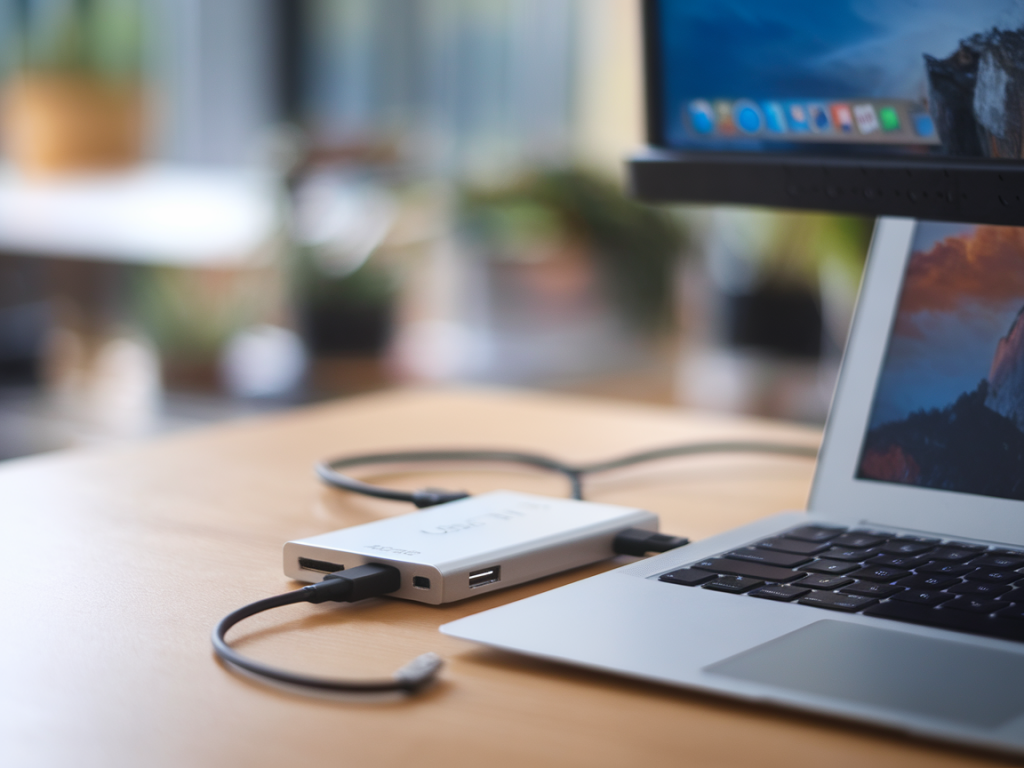
I spend a lot of time testing docks and hubs because they're one of those small accessories that can either make a laptop setup feel polished or derail an otherwise perfect workflow. MacBook Air users ask me the same two questions repeatedly: “Which hubs actually deliver true 4K at 60Hz?” and “Can I fast-charge my Air while driving a 4K display?” The short answer is: some hubs do both, but you have to look for very specific capabilities — and beware of confusing marketing copy.
Why 4K60 + fast charging is trickier than it sounds
There are two separate technical problems to solve at once. First, delivering a 4K 60Hz signal over USB-C requires either DisplayPort Alt Mode with sufficient DisplayPort version/bandwidth, or Thunderbolt/USB4 bandwidth. Second, fast charging a MacBook Air (M1/M2) usually requires at least 30–60W of USB Power Delivery (PD), and many compact hubs only pass through limited PD wattage.
Manufacturers sometimes advertise “4K support” without clarifying whether that’s 4K at 30Hz (which is noticeably less smooth) or true 60Hz. And many low-cost hubs throttle PD to 15–30W when they provide video output, which means slow charging or even battery drain under load. The other complication: Macs vary. Intel-based MacBook Airs with Thunderbolt 3 are more tolerant; Apple Silicon MacBook Airs (M1/M2) use the same USB-C spec but have quirks with MST (multi-stream transport) and external GPU expectations that influence how multi-monitor setups behave.
What I look for when testing a hub for 4K60 + charging
Hubs and docks I tested and my observations
Below is a compact table summarizing models I tested or researched closely. I include the practical caveats so you don’t buy a hub with unrealistic expectations.
| Model | Video support | PD passthrough | Ports | Notes |
|---|---|---|---|---|
| CalDigit TS3 Plus (Thunderbolt 3 dock) | Single 4K@60Hz (DisplayPort) or dual display via TB3 | Up to 87W (depending on host) | DP, TB3, USB-A, Ethernet, Audio, SD | Very reliable, full bandwidth; overkill if you only need a simple hub |
| Belkin Thunderbolt 3 Dock Pro | 4K@60Hz via TB3/DP | Up to 85W | TB3, USB-A, SD, Ethernet, Audio | Works well with Intel and Apple Silicon Macs as TB3 dock |
| Anker PowerExpand 5-in-1 / Anker 563 TB4 Dock (varies by model) | Some TB4 models: 4K@60Hz; USB-C-only models often 4K@30Hz | 60W–100W depending on SKU | USB-C, HDMI, USB-A, Ethernet | Pick the TB4/USB4 variant for reliable 4K60; read spec sheet |
| Satechi Multiport Pro (USB-C 4K HDMI) | Often 4K@30Hz on HDMI variants; some SPec versions advertise 4K@60Hz | Up to 60W (pass-through) | HDMI, USB-A, Ethernet, SD | Good compact option if you confirm 4K60 HDMI version |
| HyperDrive / Hyper (6-in-1, USB-C hubs) | Many advertise 4K@60Hz over USB-C Alt Mode; some only 30Hz | 30W–60W depending on model | HDMI/USB-C/USB-A/SD | Small, portable — verify the specific SKU for 4K60 + PD |
Note: I included larger Thunderbolt docks (CalDigit, Belkin) because they consistently deliver full 4K60 with simultaneous high PD. Smaller USB-C hubs can do 4K60 too, but only if they implement DP 1.4 or USB4/TB4. If the vendor doesn’t call out DP 1.4, USB4, or Thunderbolt support and the spec sheet shows only “HDMI 4K” without a refresh rate, assume 30Hz until proven otherwise.
Real-world testing tips — what I do and you can replicate
Troubleshooting common gotchas
How to pick the right hub for your MacBook Air
If you want, I can test a specific hub you’re considering with my M2 MacBook Air and report back on whether it delivers true 4K60 and what PD it actually passes during heavy usage. Tell me the model and where you found it, and I’ll run it through the checklist I use in my reviews.