I live in a mid-rise apartment building with thick concrete walls and an upstairs neighbor who treats their microwave like a drum kit. Over the years I’ve learned a handful of no-cost, no-drilling tricks that reliably improved Wi‑Fi in stubborn corners — often enough to skip buying extenders, mesh gear, or running Ethernet through the hallway. Below are the practical tweaks I reach for first when a room in my apartment starts complaining about slow or spotty Wi‑Fi.
Start with a quick reality check: where’s the problem and why
Before tweaking settings, walk the space with your phone or laptop and note where signal drops. Pay attention to:
- Which rooms see slow speeds (near windows, inside closets, behind thick walls).
- When issues happen (all the time, only during evening, only when the microwave runs).
- Which devices are affected (old phones, streaming TV stick, gaming console).
Knowing the pattern helps you choose the right fix. For example, if only the smart TV is weak and it’s on the 5GHz band, forcing it to 2.4GHz or moving it a few feet can be enough.
Move the router — small shifts, big difference
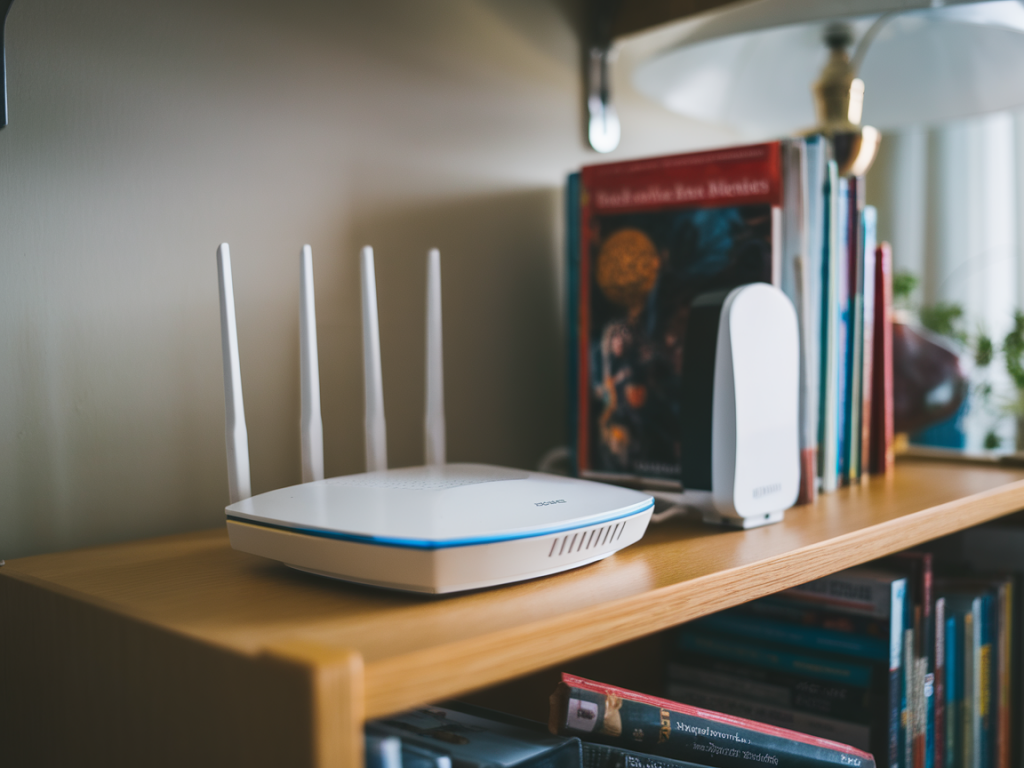
Router placement is the single easiest and most effective change. I’ve rescued dead spots just by lifting the router a few feet and nudging it toward the center of my apartment. Try these placement rules:
- Place the router high (shelf, top of a cabinet) rather than tucked on the floor.
- Centralize it if you can — wireless is omnidirectional, so central coverage beats a tucked-away corner.
- Avoid metal cabinets, microwaves, cordless phone bases, and large fish tanks. These are surprisingly effective signal eaters.
Small moves (6–12 inches) can change signal paths and avoid an obstruction. Don’t assume the router must stay by the modem — if you have a longer cable, try temporary repositioning to test coverage before making anything permanent.
Tame interference: pick the best channel and band
In apartment buildings, neighbors’ networks and devices create the biggest invisible battle. Tools like Wi‑Fi Analyzer (Android) or built‑in macOS Wi‑Fi diagnostics scan nearby networks and show which channels are busy. Once you know the landscape:
- Switch the 2.4GHz channel to 1, 6, or 11 — the non-overlapping options. Pick the one with the fewest neighboring networks.
- For 5GHz, select a channel with the least traffic; many routers can auto‑select, but manually picking a quieter channel sometimes helps.
- Reduce channel width on 2.4GHz to 20MHz (limits theoretical top speed but improves range and stability in noisy environments).
Tip: keep 2.4GHz for long-range devices (IoT, older phones) and 5GHz for short-range high-speed devices. If devices keep flipping bands automatically, give each band a different SSID so you can control which band a device uses.
Adjust router settings you may have ignored
Routers hide useful options that many people never touch. Here are the ones that have helped me most:
- Transmit power: Some routers allow you to increase or decrease transmit power. If you have the option, set it to maximum and test for improved range.
- Band steering: If your router forces devices onto 5GHz and they can’t hold that band, disable band steering and assign devices to the appropriate SSID (2.4 or 5GHz).
- Channel width: Use 20MHz on 2.4GHz, and 40/80MHz on 5GHz only if your environment is not congested.
- QoS and airtime fairness: Enabling basic QoS can prioritize video calls or gaming. Airtime fairness helps when a slow device is clogging airtime.
- WMM (Wi‑Fi Multimedia): Ensure WMM is enabled — it’s required for modern Wi‑Fi speeds and helps latency-sensitive traffic.
- Disable legacy rates: If your router supports disabling 802.11b/g-only rates, do that — it prevents older, slow devices from dragging down the network.
Firmware, reboots, and DHCP sanity
Routers are small computers. I’ve gotten dramatic improvements simply by updating firmware (security + stability fixes) or rebooting the router after a firmware install. Also:
- Check WPA settings — use WPA2/WPA3 if available. While encryption doesn’t boost range, a device stuck in old modes can disrupt performance.
- Reserve IP addresses (DHCP reservations) for frequently used devices so they reconnect cleanly and don’t confuse the router.
- Clear old devices from the admin interface — many routers slow when tracking dozens of inactive clients.
Use household items — cheap directional help
If you want a physical nudge without buying anything, I’ve used aluminum foil and a cereal box to create a simple parabolic reflector behind the router’s antennas. It won’t turn your apartment into a stadium, but it can focus weak signal into a distant room.
Another trick: move the router so a window faces the troublesome room and use the reflective surface to help with line-of-sight. Don’t place the router directly on top of a large bookcase or behind drawers — even thin layers of material can attenuate the signal.
Force devices onto the band that helps range
Many devices prefer 5GHz for speed even when they’re farther from the router. I sometimes split the SSIDs (e.g., HomeNet‑2G and HomeNet‑5G) and manually connect devices that need range to the 2.4GHz SSID. This alone solved streaming dropouts on an older TV in my unit.
When your neighbors are the problem
If evening congestion is the issue, manually setting a less-crowded 5GHz channel (DFS channels may be quieter) helps. Also try temporarily changing the router’s channel at different times to see which performs best during peak hours. In high-density apartments, experiment — what works at noon might be terrible at 8pm.
Quick reference table: expected impact of tweaks
| Fix | Effort | Typical impact |
|---|---|---|
| Move router higher/central | Low | Often large — better coverage & fewer dead zones |
| Change channels (use analyzer) | Low | Medium — reduces interference, can significantly stabilize speeds |
| Split SSIDs / force bands | Low | Medium — prevents devices from clinging to weak 5GHz |
| Firmware, reboot, clear clients | Low | Medium — stability and occasional speed fixes |
| DIY reflector (foil/cereal box) | Low | Small to medium — directional boost for a specific room |
Final practical tips I use daily
- Keep a small notebook or phone note of what changes you tried and whether they improved things — when you start toggling settings, it’s easy to forget.
- If a tweak makes things worse, revert it — most settings are reversible, and testing is cheap.
- Save router configurations before major changes (some routers let you export settings) so you can restore quickly.
- If you ever have to escalate to buying gear, try a targeted purchase: a better-placed access point or one decent powerline adapter usually beats a full mesh kit for apartments — but try the free fixes first.
These steps don’t require drilling or new hardware, and in my experience they resolve 70–80% of apartment Wi‑Fi headaches. If you want, tell me your router model and a quick layout of your apartment and I’ll suggest the two changes I’d try first.