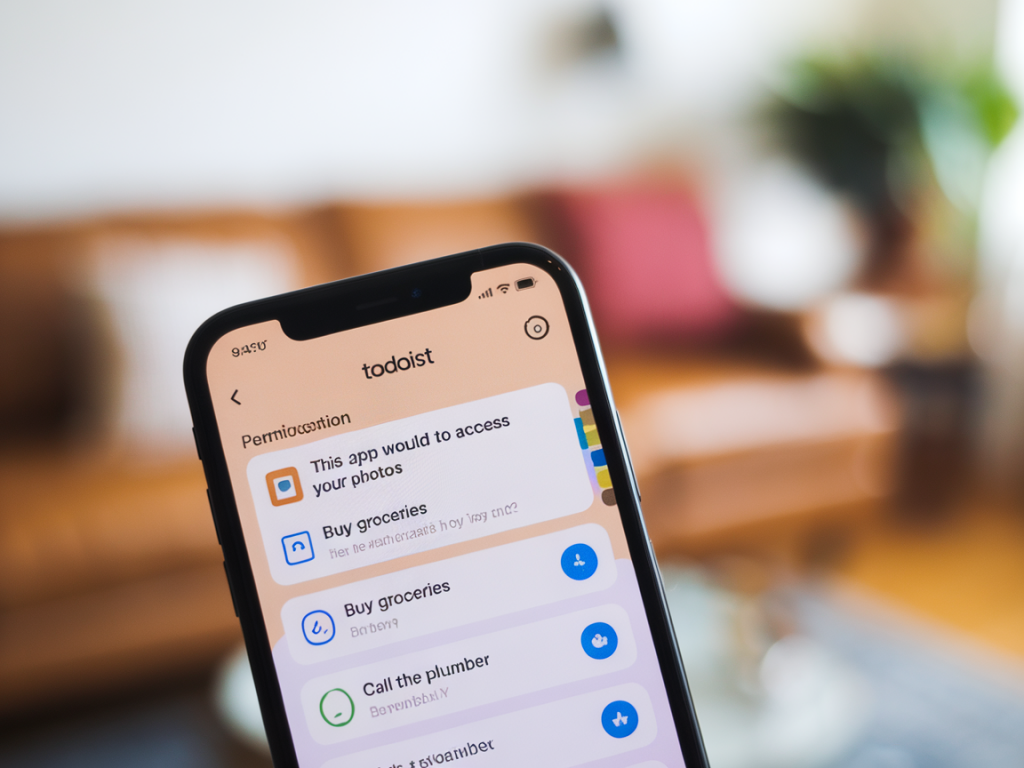
I treat permission audits like a short, high-impact ritual: 15 minutes to get a realistic sense of what third parties can access in my accounts, what’s over-permissioned, and what should be revoked or reviewed more deeply later. I do this regularly for the apps I depend on—Gmail, Google Drive, Microsoft 365, Slack, Notion, Zapier, GitHub and the mobile apps on my phone—because a single over-privileged integration is often the weakest link.
Why you can do a useful audit in 15 minutes
Most of the low-hanging privacy and security wins don’t need a full forensics exercise. In 15 focused minutes you can:
- Identify obviously dormant or broad-access apps
- Revoke tokens that are no longer needed
- Fix a few risky permissions (drive or mail access, admin scopes, broad read/write tokens)
- Create a short list of items that need deeper review later
I keep a simple mental flow: inventory → quick triage → immediate changes → log for follow-up. Below is the exact checklist I run through.
What I check first (0–3 minutes): quick inventory
Open three browser tabs for your primary platforms. For me that’s Google Account, Microsoft Account (or Azure AD if you use it), and Slack/Notion/Trello/Zapier depending on what I use. If you primarily use Apple or Facebook logins, include those too.
- Google: myaccount.google.com → Security → Third-party apps with account access
- Microsoft: account.microsoft.com → Privacy & Security → App permissions (or Azure AD Enterprise Applications for business)
- Slack: Workspace Settings → Manage apps → Installed apps
- Notion/Trello/Asana: look for “Integrations” or “Apps” in workspace settings
- Zapier/IFTTT: My Apps / Connected Accounts
- GitHub: Settings → Applications (Authorized OAuth Apps / Authorized GitHub Apps)
This inventory alone usually surfaces 10–30 entries. Don’t panic—the goal here is to flag the worst offenders fast.
Quick triage (3–8 minutes): ask three simple questions
For each app I run a rapid mental checklist. If any answer is “yes,” I either revoke immediately or mark for a quick message to the team who uses it.
- Do I recognize the app or service? Unknown = revoke and investigate.
- Does it have broad access? Full Drive access, “read and write mail,” or “admin” scopes are high-risk. If the app shouldn’t need that, revoke instantly.
- Has it been used recently? If an integration hasn’t been used in months, revoke and re-authorize later if needed.
I’ll usually revoke first, ask questions later for anything ambiguous. Re-authorizing takes seconds when the app is actually needed; cleaning out rogue tokens is harder to fix if abused.
Immediate actions (8–12 minutes): revoke, restrict, rotate
These are the changes I make right away.
- Revoke any unrecognized OAuth apps. On Google that’s a single “Remove Access” button. On GitHub I immediately remove tokens I don’t remember creating.
- Reduce scopes where possible. For example, change a broad "Google Drive" app to only “View” if that’s all it needs; if the app doesn’t support narrower scopes, consider replacement.
- Disconnect old automation accounts (Zapier, IFTTT) that are for projects you don’t run anymore.
- Rotate credentials that were publicly exposed or tied to an account that experienced suspicious activity (password change + reissue API keys where supported).
When I revoke something I add a one-line note in my audit log (more on that below): app name, date revoked, reason (unused/overprivileged/unrecognized).
Mobile apps and browser extensions (12–15 minutes): don’t forget these
Mobile apps and browser extensions are common permission leaks. I check them quickly on-device and in-browser.
- Android: Settings → Apps → Permissions or Google Play → Manage apps & device → Manage. Look for location, SMS, contacts, storage—revoke or uninstall if permissions are excessive.
- iOS: Settings → Privacy & Security. Review each category (Location, Photos, Microphone) and adjust app-level access; for Photos, prefer “Selected Photos” rather than “All Photos.”
- Browser extensions: Chrome → More tools → Extensions (or chrome://extensions). Disable extensions you don’t use daily; uninstall anything you don’t recognize.
I prioritize low-friction wins: remove extensions I haven't used this month and restrict mobile apps with always-on location or wide photo access.
Quick audit log (useful table)
| Item | Action taken | Follow-up |
|---|---|---|
| Zapier - old automation | Revoked | Confirm replacement workflow (if needed) |
| Google Drive - expense tool | Reduced from full access to view-only | Test file uploads |
| Slack app - analytics | Removed | Contact dev team to re-evaluate |
Tips to make these audits easier next time
After a few of these quick runs I changed my setup so future audits are faster and less noisy.
- Keep a central log (I use a small Notion page) that records integrations I purposely authorized and why.
- Prefer apps that use incremental scopes—services that ask for least privilege are much easier to manage.
- Use a password manager / secrets manager (1Password, Bitwarden) to store API keys and note when they were created so rotation is easier.
- Turn on automated alerts where possible: Google sends notifications for newly authorized apps; Azure/Okta can emit logs you can review.
When to do a deeper audit
If you find anything suspicious—unexpected admin scopes, tokens connected to accounts you no longer recognize, or signs of unusual activity—schedule a deeper review. That usually involves checking OAuth consent screens, API logs, and possibly rotating service principals or client secrets. For organizations, consult your admin console (Google Workspace Admin, Azure AD, Okta) and review audit logs; for personal accounts, clearing and reauthorizing services after rotating passwords is often sufficient.
Doing this 15-minute sweep regularly—weekly if you’re heavy on integrations, monthly otherwise—keeps your attack surface much smaller. It also trains you to question which tools truly need access to your data, which in my experience leads to simpler, more secure workflows overall.