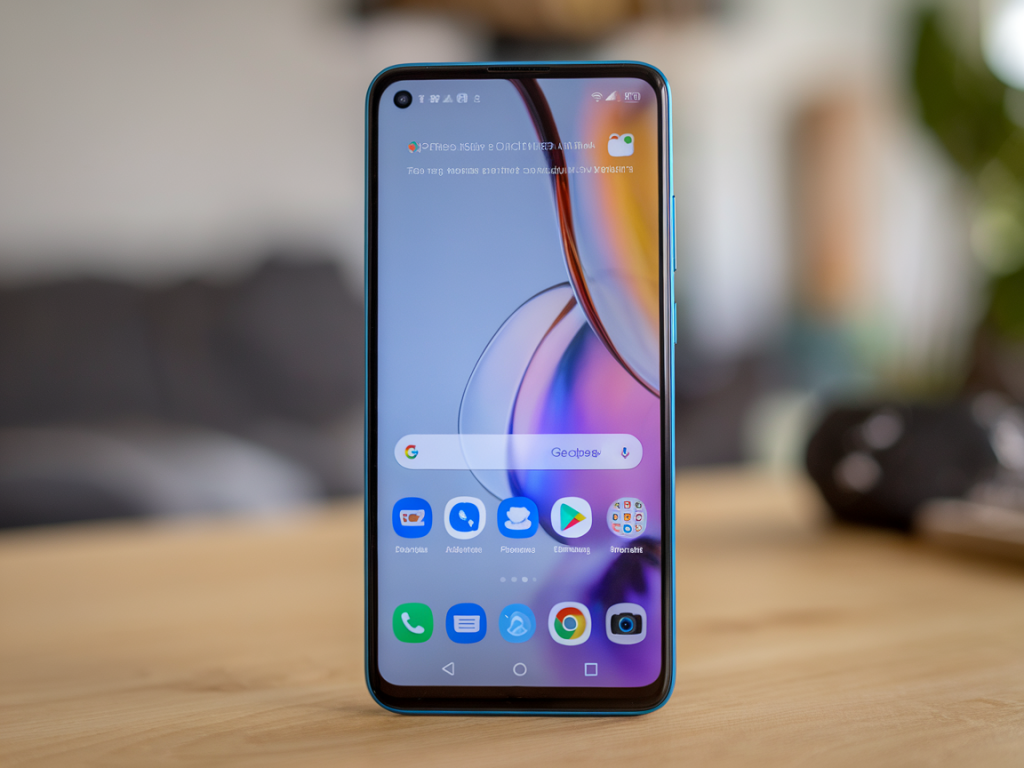
I’ve spent a lot of hands-on time trying to eke more runtime out of midrange Android phones, and one of the easiest, least-invasive tweaks I keep returning to is switching to a lightweight launcher. A launcher won’t turn a bad battery into a great one, but a lean, well-written launcher can shave background work, reduce redraws, and stop flashy animations from chewing CPU cycles — all of which add up on phones that sit in the 4000mAh or lower range.
In this piece I’ll walk through the launchers I’ve tested, why they matter for battery life, what trade-offs to expect, and a short comparison table so you can pick the one that fits your needs. I tested on a OnePlus Nord CE 2 (midrange Snapdragon), a Xiaomi Redmi Note 11, and a Samsung A34 to get a sense of how each launcher behaves across different Android vendor skins.
Why a lightweight launcher helps battery life
At first glance a launcher is just an app that shows your apps and home screens. But it’s also the component that manages widgets, app icons, gestures, background processes, and animations. Heavy OEM launchers and feature-rich third-party launchers often include persistent services, widget renderers, and fancy transitions that keep the GPU and CPU active even when you’re not touching the phone.
By switching to a lightweight launcher you typically get:
That said, not all lightweight launchers are created equal. Some trade customizability for battery savings; others are tiny but poorly maintained. I focused on launchers that are actively developed, widely used, and that strike a practical balance between features and efficiency.
What I measured and how I tested
My tests are informal but repeatable: I installed each launcher, used the phone for a full day of typical tasks (web browsing, messaging, a 30–45 minute music streaming session, occasional camera use and social media scrolling), and monitored battery drain with Android’s built-in battery chart and a third-party profiler (BetterBatteryStats on rooted devices for extra detail where available).
I paid attention to baseline behavior after a fresh restart and again after a full 24 hours to catch any delayed background activity. I also compared UI responsiveness and the convenience of features like app drawers, gestures, and folder management. Wherever a launcher had a pro or paid version, I tested the free mode first and noted features behind the paywall.
Launchers I recommend for squeezing battery life
Below are the launchers I found consistently helpful on midrange devices. I include practical notes about setup, trade-offs, and what profiles of users will appreciate each one.
Why I like it: Niagara is about as minimal as it gets while still being polished. It uses a single column app list and offers a built-in notification peek that avoids persistent notification listeners. On my Redmi Note 11 Niagara reduced background wakeups and felt very responsive.
Trade-offs: If you like lots of widgets or grid-based layouts, Niagara’s design may feel limiting. It’s not ideal for people who rely on home-screen widgets for quick info.
Why I like it: True to its name, Lean Launcher is lightweight and open-source. It sticks closely to Android’s native design, avoids extraneous services, and supports icon packs and basic gestures without the bloat. It worked very well on the Nord CE 2 — minimal CPU use, quick launch times.
Trade-offs: It’s simple, so you won’t get advanced customization or unique features like built-in feeds.
Why I like it: Lawnchair hits a sweet spot — it’s more customizable than the ultra-minimal options but optimized enough to stay lean. It’s an excellent choice if you want Pixel-like features without Pixel-level resource use.
Trade-offs: Slightly more background activity than Niagara or Lean Launcher, especially if you enable adaptive widgets and extra features.
Why I like it: Hyperion is modern, well-optimized, and supports a lot of customization without becoming a battery hog. It allows you to disable features you don’t need (like persistent services), which is key to keeping things efficient.
Trade-offs: The trade-off here is that if you enable every visual tweak, you’ll lose some battery benefit. Stick to minimal animation settings for best results.
Why I like it: Smart Launcher has a "simple" or light mode that significantly trims background activity. Its automatic app categorization and adaptive search are handy without large battery costs.
Trade-offs: The free version pushes in-app prompts and some features behind paywalls; consider the paid upgrade only if you value its advanced layouts.
Comparison table (quick features at a glance)
| Launcher | Approx. Battery Impact | Customization | Notable Strength |
|---|---|---|---|
| Niagara | Low | Low | Ultra-minimal, very efficient |
| Lean Launcher | Low | Low-Medium | Open-source, native feel |
| Lawnchair 12 | Low-Medium | High | Pixel-like features, balanced |
| Hyperion | Low-Medium | High | Flexible but optimizable |
| Smart Launcher 5 (light) | Medium | Medium | Smart categorization, adaptive search |
Tweaks to maximize gains
Switching to a lightweight launcher is only part of the strategy. To get the most battery benefit I recommend:
When not to switch
If you rely on deep integrations like vendor gestures, fingerprint-to-launch actions, or lots of home-screen widgets, an OEM launcher might still be the better daily option. Also, certain power saving profiles from manufacturers interact better with the stock launcher — in a few cases I saw less aggressive background killing with third-party launchers installed.
Finally, be prepared to test. Try one launcher for at least 48–72 hours to catch delayed background behavior. If you’re obsessive about battery charts, use Android’s battery usage and a profiler to compare before/after trends rather than relying on a single day’s impression.